Your Questions, Answered
We’ve assembled the most frequently asked questions about Eversense into one place. Got a question that you can’t find the answer to? Contact us.
The Eversense® 365 Sensor and adhesive patches contain silicone. If you have any concerns about allergic reaction to silicones, contact your health care professional prior to use.
The Eversense® 365 Smart Transmitter can store up to one year of glucose data.
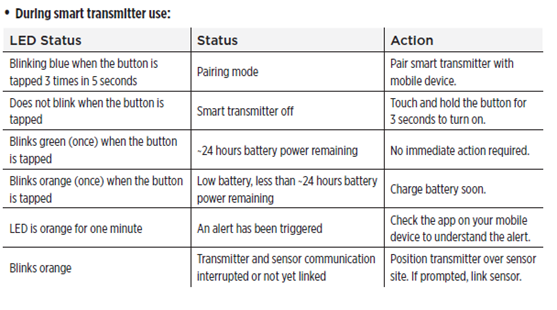
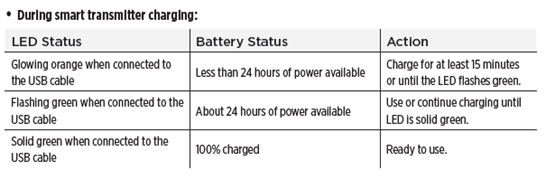
The Eversense® 365 Smart Transmitter carries a 12-month warranty. You should ensure you have arranged for a replacement transmitter at the end of 12 months.
Senseonics warrants to the original patient end user (“you”) of the Eversense® 365 Smart Transmitter that the Smart Transmitter shall be free from defects in material and workmanship under normal use for a period of one year (365 days) commencing on the date that you first received the Smart Transmitter from your health care provider (“Limited Warranty Period”). This warranty gives you specific legal rights, and you may also have other rights which vary from jurisdiction to jurisdiction. This limited warranty is made on the condition that you provide Senseonics with written notice of any defects in material and/or workmanship immediately upon discovery, and provided that Senseonics determines that your claim is due to defects in original material and/or workmanship. If Senseonics provides you with a replacement Smart Transmitter pursuant to the terms of this limited warranty, any remaining warranty on the original Smart Transmitter will transfer to the replacement Smart Transmitter, the warranty period for the replacement Smart Transmitter shall end on the one year anniversary of the date that you first received the Smart Transmitter from your health care provider, and this warranty will be void with respect to the original Smart Transmitter.
The Eversense® 365 Smart Transmitter is water resistant to an Ingress Protection Rating of IP67. This means you can submerge in water 1 meter (3.2 feet) deep for up to 30 minutes. You can take showers and swim without extra protection. Exposing the smart transmitter to conditions beyond this will result in damage and void your warranty.
Sensor: The sensor is considered medical waste and will be disposed of by your health care professional.
Transmitter: The transmitter contains a reusable battery and should be disposed of based on your local regulations.
Adhesive patch: The adhesive patch can be thrown away with normal household trash.
Still have questions?
The Eversense team is dedicated and ready to provide the answers and support you need. Simply click the link below.
The Eversense® 365 Continuous Glucose Monitoring (CGM) System is indicated for continually measuring glucose levels for up to one year in people (18 years and older) with diabetes. The system is indicated for use to replace fingerstick blood glucose (BG) measurements for diabetes treatment decisions. Fingerstick BG measurements are required for calibration one time a week after day 13, and when symptoms do not match CGM information or when taking medications of the tetracycline class. The sensor insertion and removal procedures are performed by a health care provider. The Eversense 365 CGM System is a prescription device; patients should talk to their health care provider to learn more.
For important safety information, see bit.ly/eversensesafety
Eversense, Eversense 365 Continuous Glucose Monitoring, and the Eversense logo are trademarks of Senseonics, Incorporated. All other trademarks are properties of their respective owners and are used solely for informative purposes. No relationship or endorsement should be inferred or implied.
Apple Watch® is a product of Apple, Inc., and may be separately purchased from an authorized Apple retailer. Apple Watch is not included with the Eversense CGM System. Android is a trademark of Google LLC.
MKT-001692 Rev 1


 Call My Eversense Specialist Now
 Schedule a Call