Your Questions, Answered
We’ve assembled the most frequently asked questions about Eversense into one place. Got a question that you can’t find the answer to? Contact us.
You can see your last calibration in one of two ways:
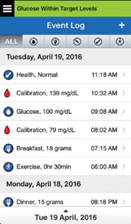
In the system Event Log (Menu → Event Log), the value and time of your most recent blood glucose calibration will be listed, and will be indicated by a red blood drop icon. If helpful, you can sort for only blood glucose entry events by tapping on the blood drop icon in the sort bar at the top of the screen.
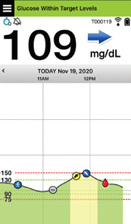
Secondly, your most recent successful calibration will be visible on your My Glucose Home Screen with a red blood drop.
No. The best way for a user to support system accuracy is to calibrate as prompted and to always calibrate the system using only a fingerstick blood sample. DO NOT calibrate at times when glucose may be rapidly changing (e.g., after meals, after dosing insulin). DO NOT use a blood glucose reading from an alternative site (such as forearm or palm) to calibrate the system.
Follow the steps to creating your account in the Eversense 365® App and activating your account. Once you Log In, follow the steps to Pair your transmitter, link your sensor, and complete warm-up and initialization phase.
You can go to the System Set Up menu at any time as well. Main Menu > System Set Up
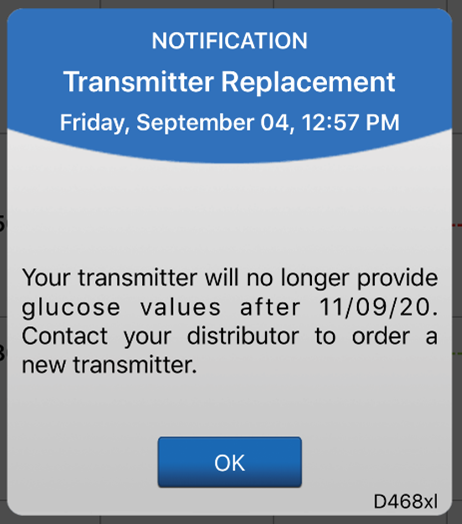
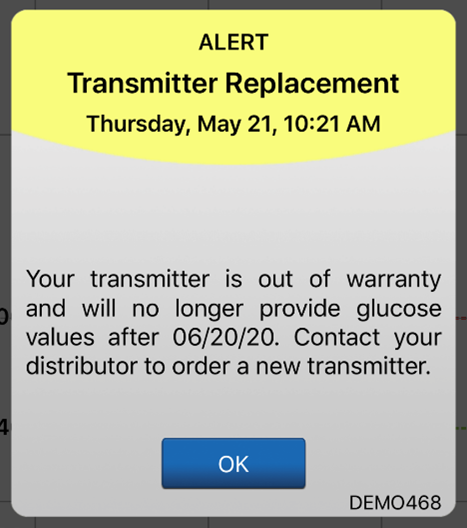
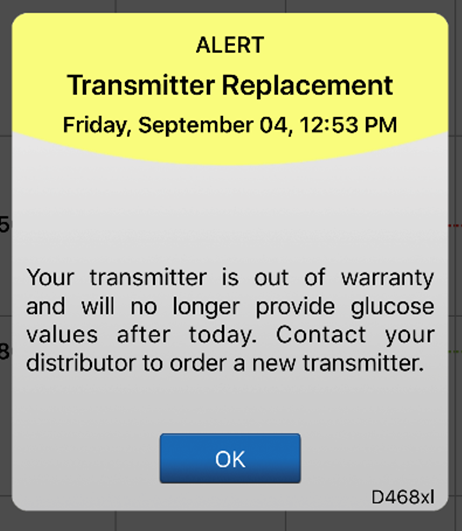
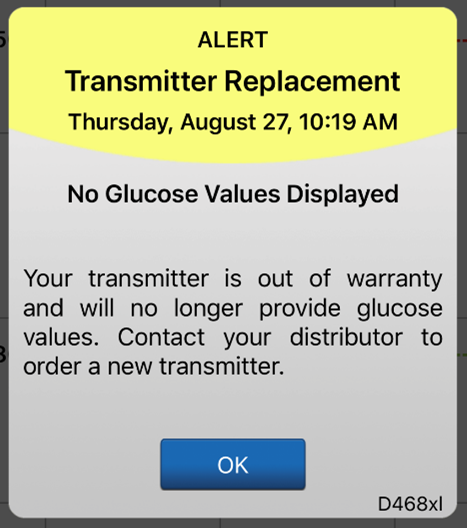
The system will send out a notification on day 330, and alerts on days 366, 373, 380, 387, 394, 395, and 396 reminding the user to order a new smart transmitter. After day 395, the smart transmitter will no longer be able to provide CGM data to you.
The Eversense® 365 CGM System provides readings within 40 – 400 mg/dL range every 5 minutes.
The following steps outline how to pair your mobile device and smart transmitter.
- Launch the Eversense® 365 CGM App and go to the Connect screen (if pairing during installation, when you tap “I have a smart transmitter”, the System Set Up screen is displayed. Tap Connect).
- Make sure you have an internet connection, and keep the transmitter within 6 feet of your mobile device during the pairing process.
- Tap the smart transmitter’s soft touch button three times to activate Pairing mode.
- When the smart transmitter blinks blue, tap the smart transmitter serial number (listed on the back of the smart transmitter) on the CONNECT screen. The app will then begin the searching process.
- When the app finds your smart transmitter, a BLUETOOTH PAIRING REQUEST pop-up screen appears.
- The app will display Connected next to the smart transmitter serial number once the pairing is completed.
NOTE: The smart transmitter should not be charging during the pairing process.
Still have questions?
The Eversense team is dedicated and ready to provide the answers and support you need. Simply click the link below.
The Eversense® 365 Continuous Glucose Monitoring (CGM) System is indicated for continually measuring glucose levels for up to one year in people (18 years and older) with diabetes. The system is indicated for use to replace fingerstick blood glucose (BG) measurements for diabetes treatment decisions. Fingerstick BG measurements are required for calibration one time a week after day 13, and when symptoms do not match CGM information or when taking medications of the tetracycline class. The sensor insertion and removal procedures are performed by a health care provider. The Eversense 365 CGM System is a prescription device; patients should talk to their health care provider to learn more.
For important safety information, see bit.ly/eversensesafety
Eversense, Eversense 365 Continuous Glucose Monitoring, and the Eversense logo are trademarks of Senseonics, Incorporated. All other trademarks are properties of their respective owners and are used solely for informative purposes. No relationship or endorsement should be inferred or implied.
Apple Watch® is a product of Apple, Inc., and may be separately purchased from an authorized Apple retailer. Apple Watch is not included with the Eversense CGM System. Android is a trademark of Google LLC.
MKT-001692 Rev 1


 Call My Eversense Specialist Now
 Schedule a Call